Follow these steps to transfer your local save to the server via SFTP using FileZilla.
Before uploading anything, stop your server in the xREALM panel.
Go to the Advanced tab in your server panel. There you’ll find your SFTP details.
The port is included at the end of the server address.

Launch FileZilla on your PC.
Use the SFTP credentials from your server panel to connect.
In FileZilla:
Right side = your server files
Left side = your local PC files
On the server side, go to:
/R5/Saved/SaveProfiles/Default/RocksDB_v2_Backups/Worlds
On the local PC side, go to the folder where your Windrose savegame is stored.
C:\Users\(User)\AppData\Local\R5\Saved\SaveProfiles\<profile>\RocksDB_v2_Backups\Worlds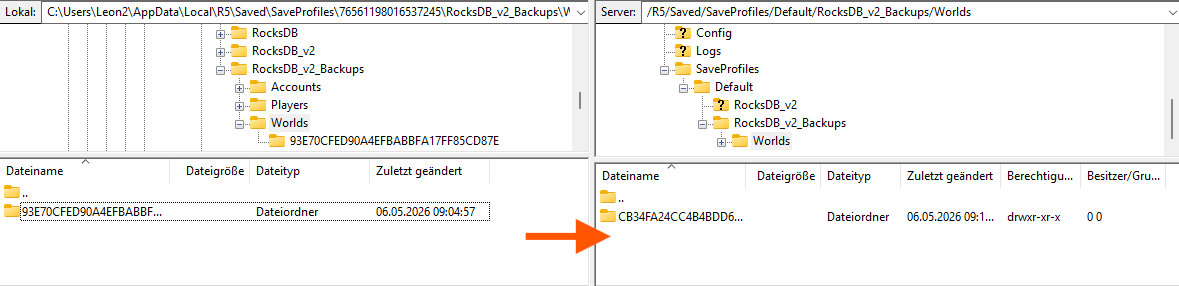
Drag your save folder from the left side to the right side.
Make sure the upload is fully completed before continuing.
Go back to your server panel and open:
/container/R5/Saved/SaveProfiles/Default/RocksDB_v2_Backups/Worlds
Open the new save folder you just uploaded.

Now go to:
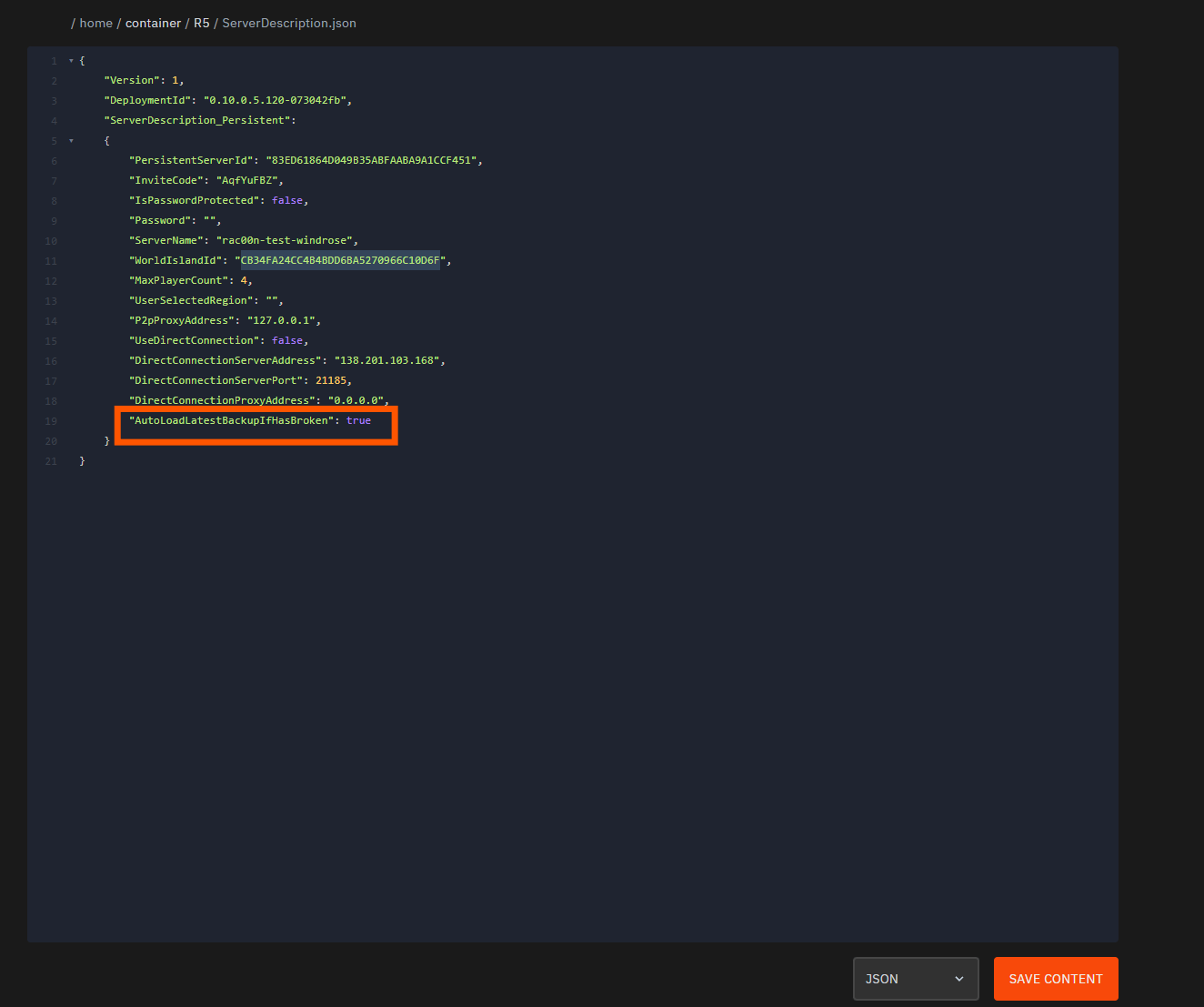
/R5/ServerDescription.json
Find this line:
"WorldIslandId":
Paste the copied IslandId there so the server loads the correct world.
And make sure "AutoLoadLatestBackupIfHasBroken" = true
Once everything is saved, start your server again.
Your server should now load the uploaded Windrose savegame.